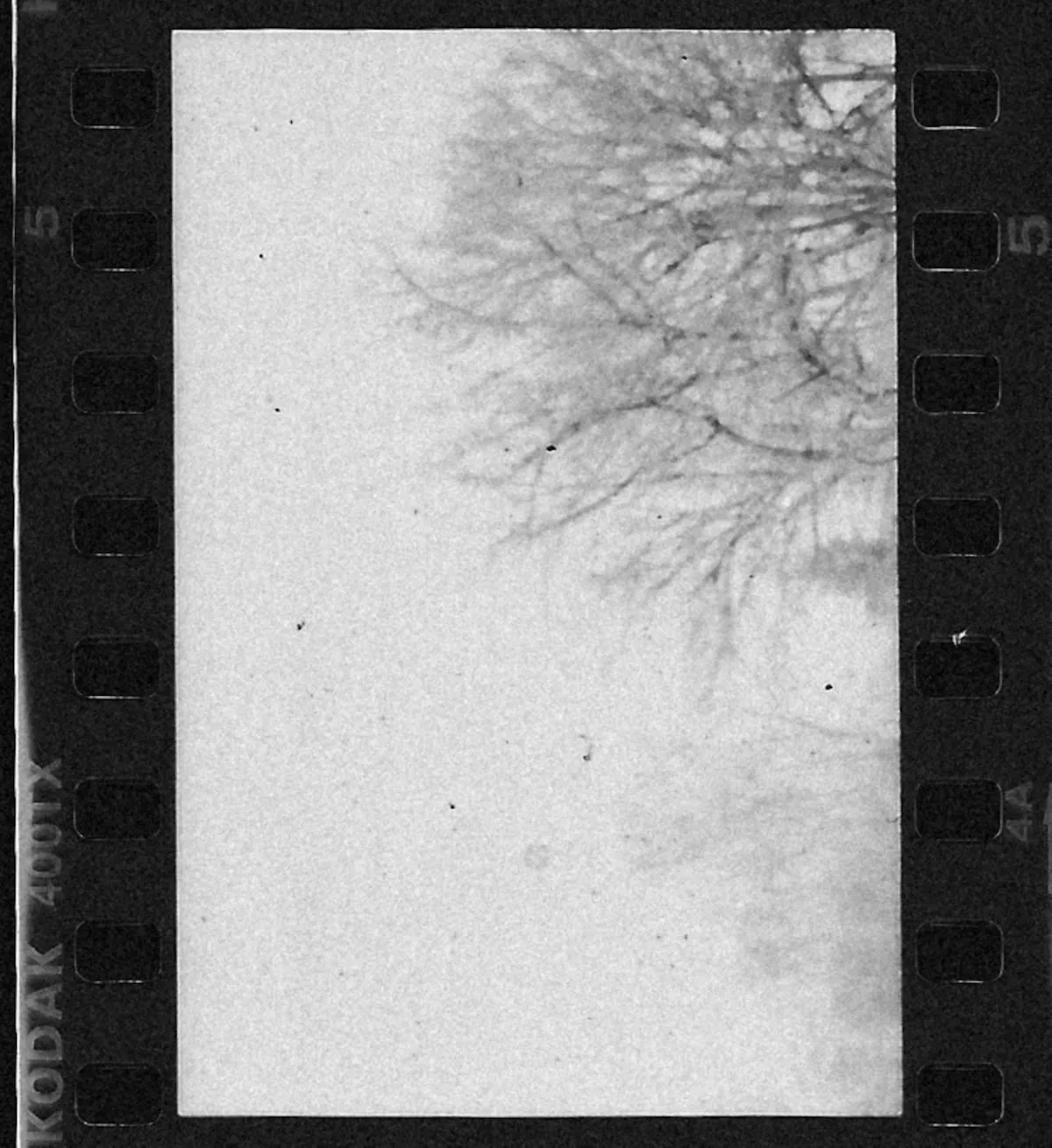
Getting your film developed is only half the process. The scan is where your negatives become images you can share, print, and archive — and the quality of that scan shapes the final result more than most people realize. Lab scans are convenient, but scanning at home gives you full control over color, resolution, and cropping while saving real money if you shoot regularly.
At $5–10 per roll for lab scans, a photographer shooting two rolls a week crosses the break-even point on a home scanner within a year. Beyond cost, home scanning means your workflow moves at your pace — no more waiting days for a lab to upload your files.
A lab scan is someone else's interpretation of your negative. Scanning at home means the final image is yours from start to finish.
Method 1: Flatbed Scanner
Flatbed scanners with a transparency unit are the most common entry point. You place your negatives in a film holder, lay it on the glass, and the scanner does a slow, methodical pass. The Epson Perfection V600 (around $230) and the Epson V850 Pro (around $800) are the two models you'll see recommended everywhere.
For medium format and large format, flatbeds are genuinely good. The larger negative area means the scanner's optical resolution captures plenty of detail. For 35mm, flatbeds are acceptable but not ideal — usable for web and moderate prints, but pixel-peepers will notice softness compared to dedicated scanners. Scan at 2400 DPI for everyday use and 4800 DPI when you want full resolution.
Software options: Epson's bundled software is functional but basic. VueScan ($40–$80) supports virtually every scanner and offers better color and exposure control. SilverFast is the premium option with excellent color science but a steeper learning curve.
- Pros: Affordable entry point. Handles multiple formats (35mm, 120, 4x5). Simple scan-and-walk-away workflow.
- Cons: Slow — 5–10 minutes per frame at high resolution. 35mm quality limited by optics. Holders can be finicky to load.
Method 2: Dedicated Film Scanner
Dedicated film scanners are built exclusively for film, with optics optimized for the 35mm frame. The Plustek OpticFilm 8200i ($300–400) is the current best option in production. The discontinued Nikon Coolscan series (5000 ED, 9000 ED) remains the gold standard if you can find one — $500 and up used, with prices climbing.
Both support Digital ICE, an infrared dust and scratch removal system that works remarkably well on color negatives. It doesn't work on traditional silver-based black and white film — the silver particles interfere with the infrared channel. The Plustek scans one frame at a time, and a high-res scan with ICE takes several minutes, making a 36-exposure roll a patient afternoon's work.
- Pros: Best optical quality for 35mm at this price. ICE saves hours of dust retouching. Compact footprint.
- Cons: 35mm only on the Plustek. Very slow per-frame. Best models discontinued and expensive used.
Method 3: DSLR / Mirrorless Camera Scanning
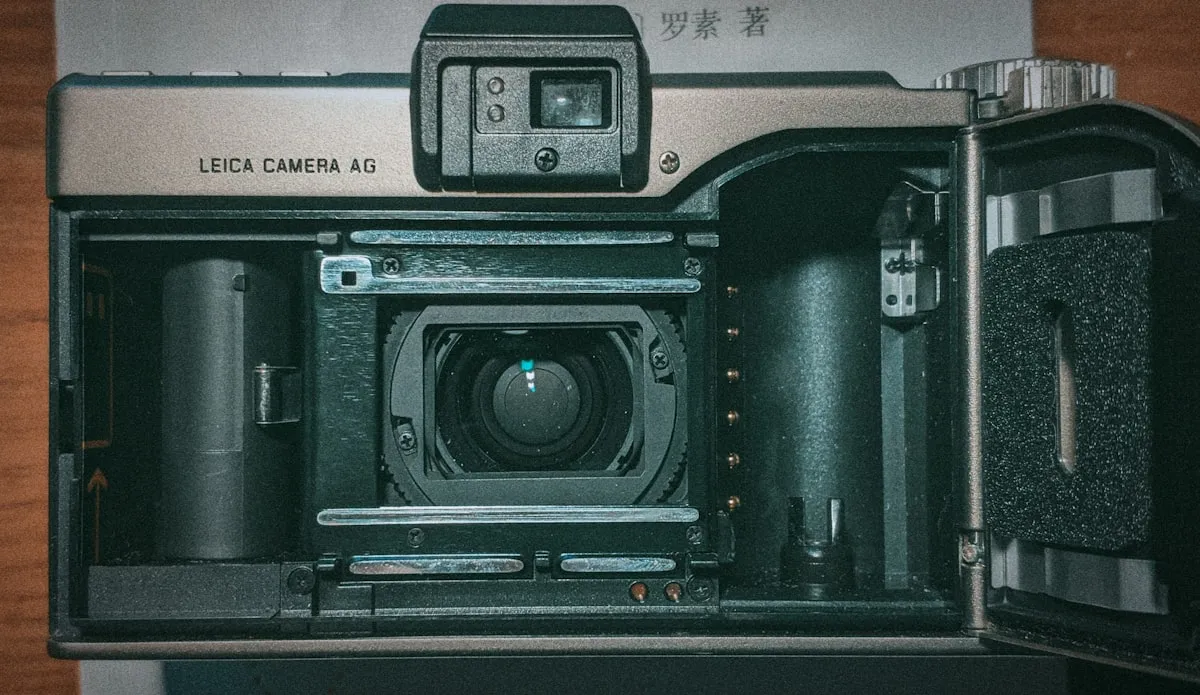
This is the method that's taken over the enthusiast community, and for good reason: it's fast, the quality ceiling is extremely high, and many photographers already own the main piece of equipment — a digital camera with a macro lens.
Mount your camera on a copy stand or tripod pointing straight down. Place a backlight source beneath the negative — a light pad or high-CRI LED panel. Hold the negative flat with a purpose-built holder like the Valoi Easy35, Essential Film Holder, or Negative Supply carrier. Photograph each frame at base ISO, stopped down to f/5.6–f/8 for peak sharpness.
A 24-megapixel sensor with a good macro lens resolves more detail from 35mm than most flatbeds. A 45-megapixel sensor approaches Coolscan territory. Speed is unmatched — a full 36-exposure roll in under 10 minutes once you have a rhythm.
The catch: you need software to convert negatives to positives. Negative Lab Pro (a Lightroom plugin, $99) is the most popular choice. Grain2Pixel is a newer alternative gaining traction. The conversion step adds time, but results rival or surpass traditional scanners.
- Pros: Fastest capture method. Highest quality ceiling. Works for all formats. Uses gear you may already own.
- Cons: Requires macro lens and holder. Negative inversion software is a separate purchase. Steeper learning curve.
Resolution Guide: How Much DPI Do You Need?
Higher DPI isn't always better — past a certain point you're scanning grain, not detail.
- 2400 DPI: Roughly 8 megapixels from 35mm. Plenty for social media, web, and prints up to 5x7.
- 4800 DPI: Around 30 megapixels. Prints up to 11x14 with solid detail. The sweet spot for archival-quality files.
- 7200+ DPI: Maximum extraction for large exhibition prints or heavy cropping. Diminishing returns on most stocks.
For DSLR scanning, resolution depends on sensor megapixels and macro magnification rather than a DPI setting. A 24MP camera at 1:1 on 35mm is roughly equivalent to 3200 DPI.
The Orange Mask Problem
Color negatives have a strong orange tint built into the film base to improve color reproduction during optical printing. Simply inverting in Photoshop produces muddy, blue-shifted results because the mask doesn't invert cleanly. Software like VueScan, SilverFast, or Negative Lab Pro profiles different film stocks and corrects during inversion. This is why scanning software matters as much as the scanner.
Black and white negatives don't have this problem — a straight inversion produces a usable positive, which is one reason B&W scanning is simpler.
Post-Processing Workflow
Once you have a positive image, a few standard steps finalize the file:
- White balance: Adjust until neutral tones look right. Scanner software sometimes nails this; sometimes it drifts.
- Dust removal: Healing brush or clone stamp for specks that ICE missed. Clean handling and a dust-free workspace prevent most issues.
- Crop and rotate: Align frame edges and crop to your preferred ratio. Perfect alignment in a holder is harder than it sounds.
- Tone adjustments: Minor curves, contrast, blacks. The goal is faithful representation, not heavy editing — but a small adjustment often brings a scan to life.
Cost Comparison: Home Scanning vs. Lab Scans
A basic setup — an Epson V600 at $230 or a Plustek 8200i at $300–350 — pays for itself in 30–50 rolls versus lab scans at $7–10 per roll. At two rolls a week, that's break-even within four to six months.
DSLR scanning costs roughly $200–380 on top of the camera and macro lens you already own (light source, holder, Negative Lab Pro), with better quality and dramatically faster throughput than a flatbed.
Lab scans still make sense for occasional shooters or anyone who doesn't want the post-processing workflow. There's no shame in paying for expertise. But for maximum control and long-term savings, home scanning is the clear winner.
Matching Scans to Your Shot Data
Scanning produces the image. But to learn from your results, you need to know how each frame was shot — what aperture, shutter speed, and lighting conditions produced that specific exposure. Without context, a great scan is just a pretty picture.
Pellica's film roll tracker lets you log exposure data for every frame as you shoot, then import your finished scans to match each image with its settings. If you use the built-in light meter in the field, that data flows directly into your roll log — no manual entry needed. Use the lab finder to benchmark your home scans against a professional lab's output from the same negatives while you dial in your workflow.